


Print barcode labels
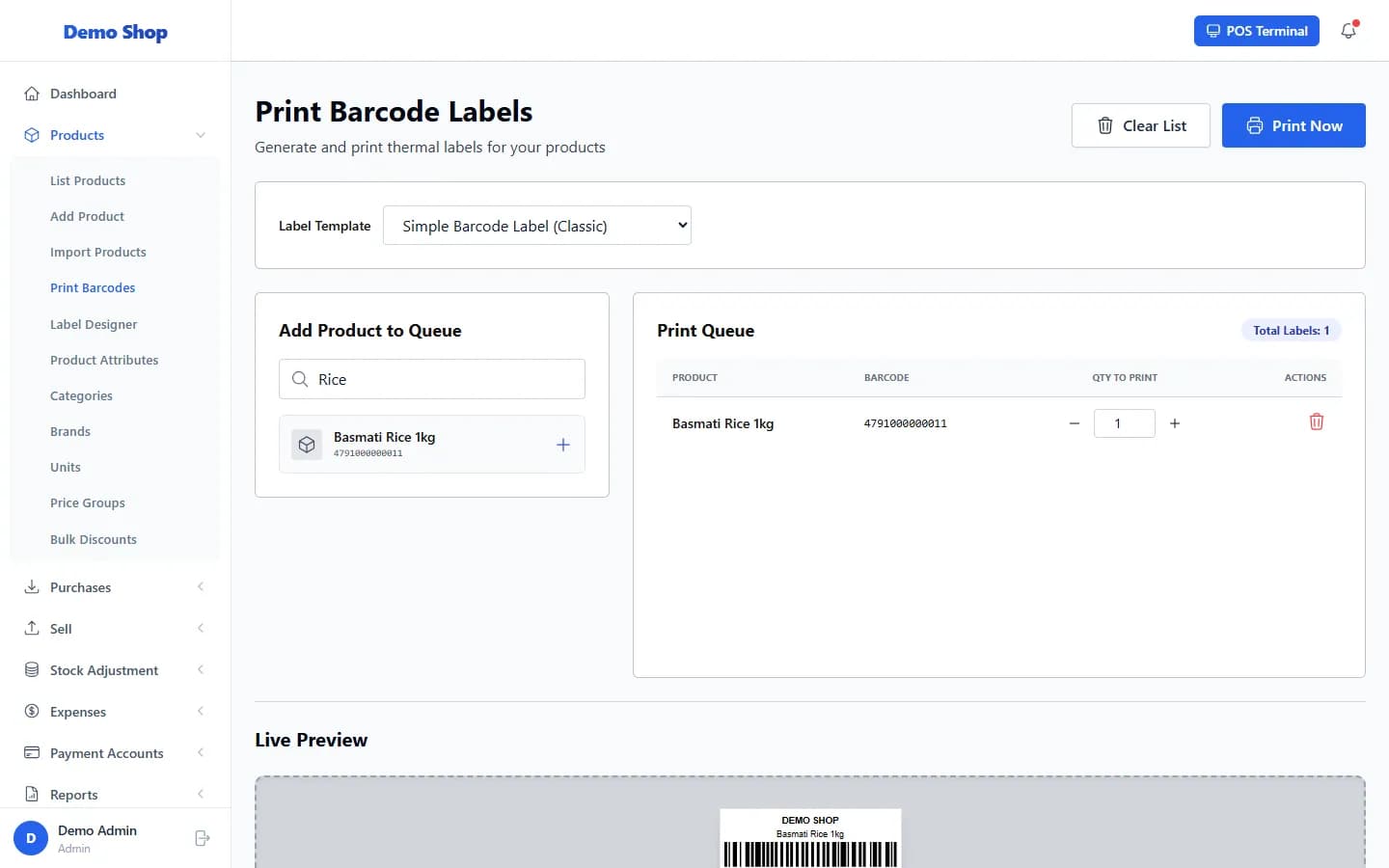
Open Products → Print Barcodes, choose a Label Template, search for products to add them to the print list, set Qty to Print and select Print Now.
Steps
- Open Products and select Print Barcodes. (From the product list you can also use a product’s Print Labels action.)
- Under Label Template, choose the label design. Simple Barcode Label (Classic) is the standard one.
- In Add Product to Queue, search by product name or barcode and select the product to add it.
- In the Print Queue, set Qty to Print for each product.
- Check the Live Preview.
- Select Print Now and choose your printer in the print window.
Common problems
| What you see | What to do |
|---|---|
| The preview is blank | Wait for “Building preview…” to finish, and make sure the product has a barcode. |
| Labels print the wrong size | Choose the paper size for your label roll in the printer settings of the print window. |
Last checked against ANOWEX ERP on . Screens and wording can change as the product is updated.