


Add a product
Open Products → Add Product, fill in the name, barcode, unit and prices, and select Save Product. The barcode must be unique.
Steps
- Open Products in the left menu and select Add Product.
- Enter the Product Name.
- Leave Product Type as Simple for an ordinary item. (Other types are for bundles and items with variants.)
- Enter or scan the Barcode / SKU. Every product needs a different one.
- Choose the Unit (for example Piece or Kilogram). Add a Brand and Category if you use them.
- Under Business Locations you can choose the branches that stock this product.
- Enter the Opening Stock and the Alert Quantity (the level at which the product shows as low stock).
- Enter the Purchase Price (what you pay) and the Selling Price. Add a Wholesale Price if you sell to wholesale customers.
- If the product has a regular discount, choose the Discount Type (Fixed or Percentage) and the Discount Amount.
- Add a picture with Browse… if you wish.
- Select Save Product.
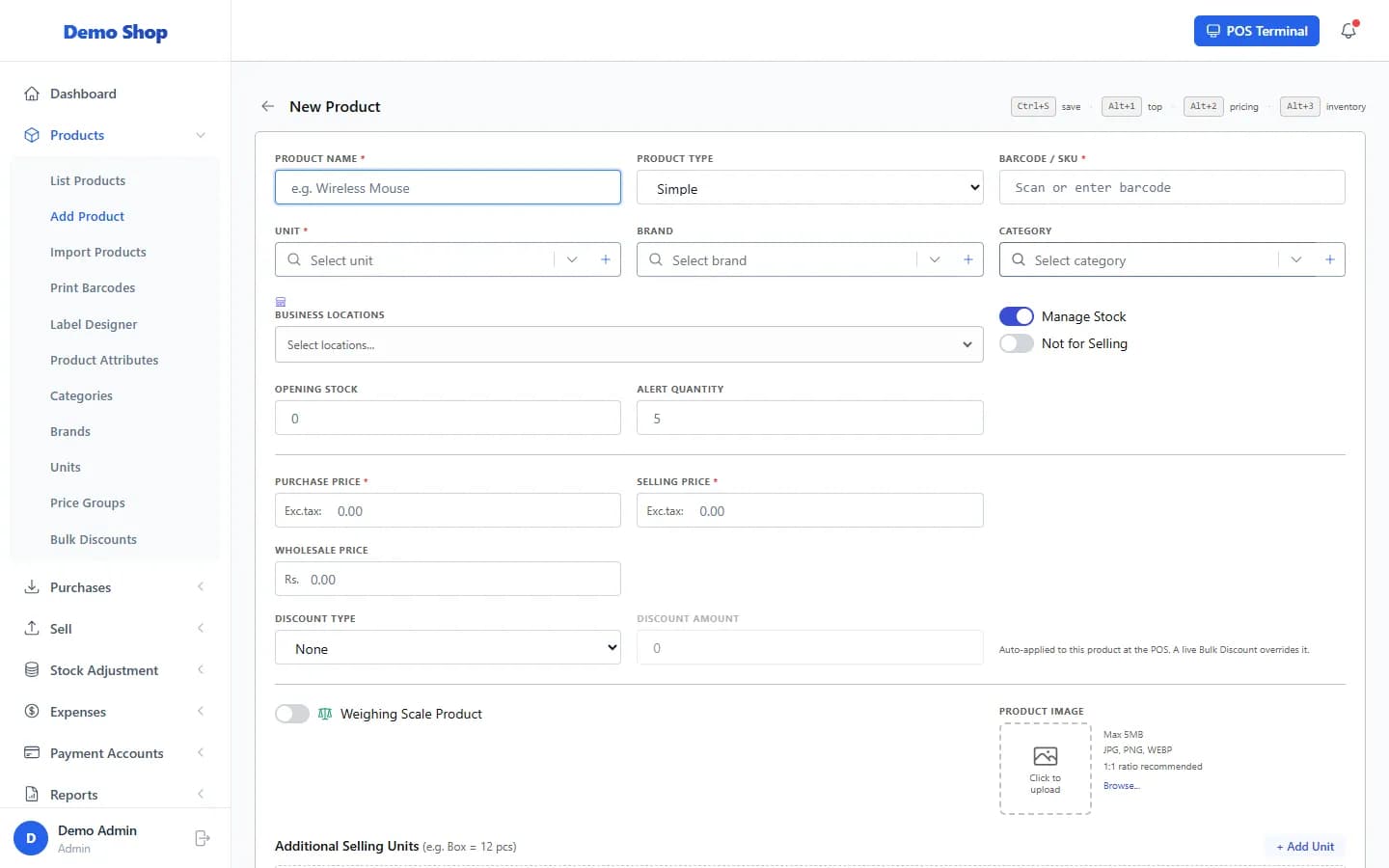
Field guide
| Field | What to enter | Required |
|---|---|---|
| Product Name | The name staff and customers will see. | Yes |
| Barcode / SKU | The number printed on the item, or your own code. Must be unique. | Yes |
| Unit | How the item is counted (Piece, Kilogram, Box…). | Yes |
| Purchase Price | What the item costs you. | Yes |
| Selling Price | The normal price at the counter. | Yes |
| Wholesale Price | Price for wholesale customers. | No |
| Manage Stock | Tick to count stock for this item. Untick for items you do not count. | No |
| Not for Selling | Tick to hide the item from the POS and sales (for example a supply item). | No |
| Opening Stock | Whole number of items you have now. | Yes |
| Alert Quantity | Low-stock warning level. | Yes |
| Weighing Scale Product | Tick for items sold by weight from a scale label. | No |
What happens next
- The product appears in Products → List Products and at the POS.
- A selling price edited here is used for new sales straight away.
Common problems
| What you see | What to do |
|---|---|
| “The barcode has already been taken” | Use a different barcode. This also happens if a deleted product once used that barcode. |
| I cannot find Add Product | Your role may not allow adding products. Ask an administrator. |
Last checked against ANOWEX ERP on . Screens and wording can change as the product is updated.