


Adjust stock after damage, loss or a count
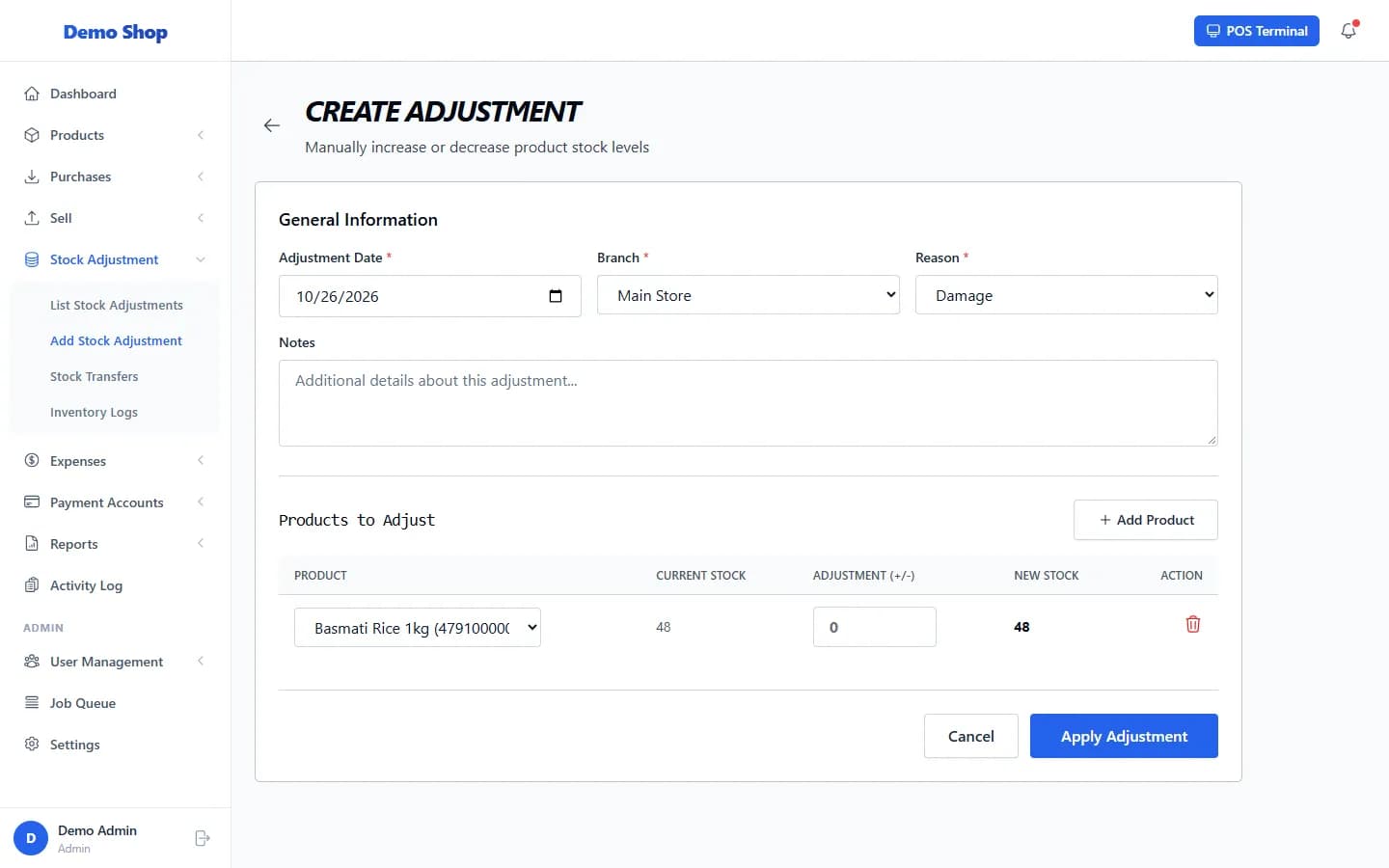
Open Stock Adjustment → Add Stock Adjustment, choose the branch and reason, add each product with the change (+ or −), and select Apply Adjustment.
Steps
- Open Stock Adjustment in the left menu and select Add Stock Adjustment (or New Adjustment on the list).
- Under General Information, set the Adjustment Date, choose the Branch and the Reason: Damage, Lost, Stock Correction, Return to Supplier or Customer Return. Add Notes if you wish.
- Under Products to Adjust, choose a product. The Current Stock is shown.
- In Adjustment (+/-) enter a whole number. Use a minus sign to reduce stock (for example −3 for three broken items) or a plus to increase it.
- Check the New Stock column. Add more products with Add Product.
- Select Apply Adjustment.
What happens next
- Stock at that branch changes straight away.
- The adjustment appears in Stock Adjustment → List Stock Adjustments (Adjustment History). Choose View Items to see its lines.
Last checked against ANOWEX ERP on . Screens and wording can change as the product is updated.