


Create a purchase order and receive stock
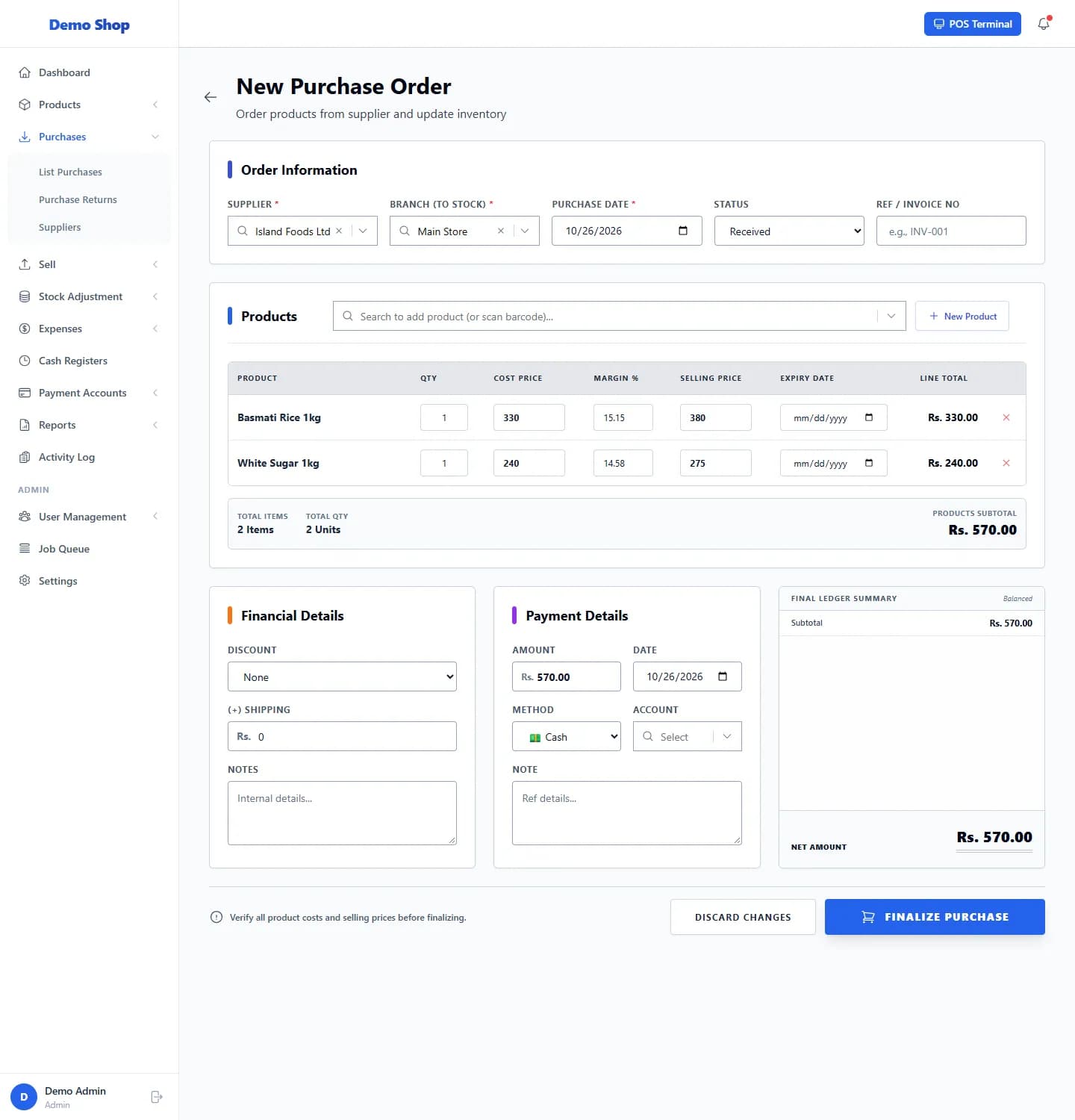
Open Purchases → List Purchases, select New Purchase Order, choose the supplier and branch, add the products with their quantities and costs, choose how it was paid, and select FINALIZE PURCHASE. Stock goes up as soon as you save.
Steps
- Open Purchases → List Purchases. The page is titled Purchase Orders.
- Select New Purchase Order.
- Under Order Information, choose the Supplier and the Branch (to stock) that is receiving the goods. Check the Purchase Date.
- Leave Status as Received if the goods are with you. Enter the supplier’s Ref / Invoice No if you have it.
- Under Products, search by name or scan a barcode to add each product. Use New Product if an item does not exist yet.
- For each product line, enter the Qty (whole numbers) and the Cost Price you were charged. The Selling Price is filled in from the product and Margin % is worked out for you; change the selling price if it has changed. Add an Expiry Date if you track expiry.
- Under Financial Details, add a Discount (Fixed or Percentage) and Shipping if the supplier charged them. Add Notes if needed.
- Under Payment Details, enter the Amount you are paying now, the Date, the Method (Cash, Card, Bank Transfer or Credit (Pay Later)) and the Account it is paid from.
- Check the Final Ledger Summary, then select FINALIZE PURCHASE. Select DISCARD CHANGES to leave without saving.
What happens next
- The stock of every product on the order increases at the branch you chose, straight away.
- Each product’s Purchase Price becomes the cost on this order, so the system knows what that stock cost.
- If you paid by Cash, Card or Bank Transfer, the payment is recorded against the matching payment account.
- If you chose Credit (Pay Later), nothing is paid now. The amount is added to what you owe the supplier (see “Pay a supplier”).
- The purchase appears in List Purchases and in the inventory log.
Common problems
| What you see | What to do |
|---|---|
| “The items.0.qty field must be an integer” | Enter a whole number for the quantity. Purchases do not accept decimals. |
| I cannot choose the branch | You may be limited to certain branches. Ask an administrator. |
| I do not see Purchases in the menu | The Purchases module may be switched off, or your role may not allow it. |
Last checked against ANOWEX ERP on . Screens and wording can change as the product is updated.