


Record a customer payment (settle what they owe)
Open the customer’s profile, open the settle window, enter the amount, method and date, and select Confirm Payment. You can tick the bills it pays.
Steps
- Open Sell → Customers and choose View Profile in the customer’s row.
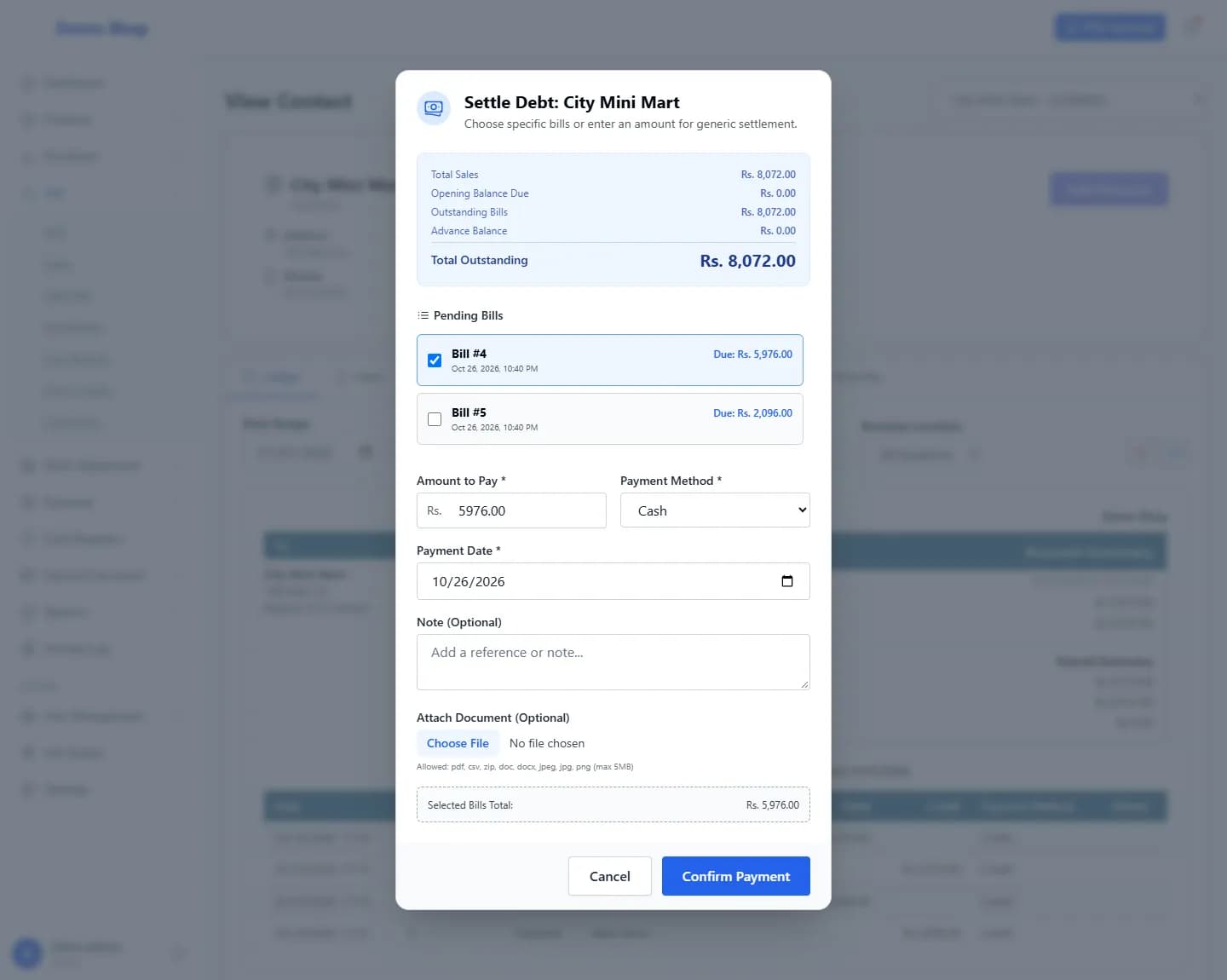
- Select the button near the top of the profile labelled Add Discount. Despite its name, it opens the Settle Debt window for recording a payment.
- (You can also reach the profile from Reports → Customer Dues by selecting View Profile in the customer’s row.)
- Read the summary: Total Sales, Opening Balance Due, Outstanding Bills, Advance Balance and Total Outstanding.
- To pay particular bills, tick them under Pending Bills. The Amount to Pay fills in for you.
- Or leave the bills unticked and type the Amount to Pay. Money is applied to the opening balance first, then to the oldest bills.
- Choose the Payment Method (Cash, Card, Bank Transfer or Cheque) and the Payment Date.
- Add a Note or attach a document if you wish, then select Confirm Payment.
What happens next
- The bills paid are reduced or marked paid, and the customer’s balance falls.
- Cash and card payments are added to the matching payment account. Bank Transfer and Cheque go to the bank account.
- The payment shows on the customer’s statement and under Payments on their profile.
Last checked against ANOWEX ERP on . Screens and wording can change as the product is updated.