


Add your branches
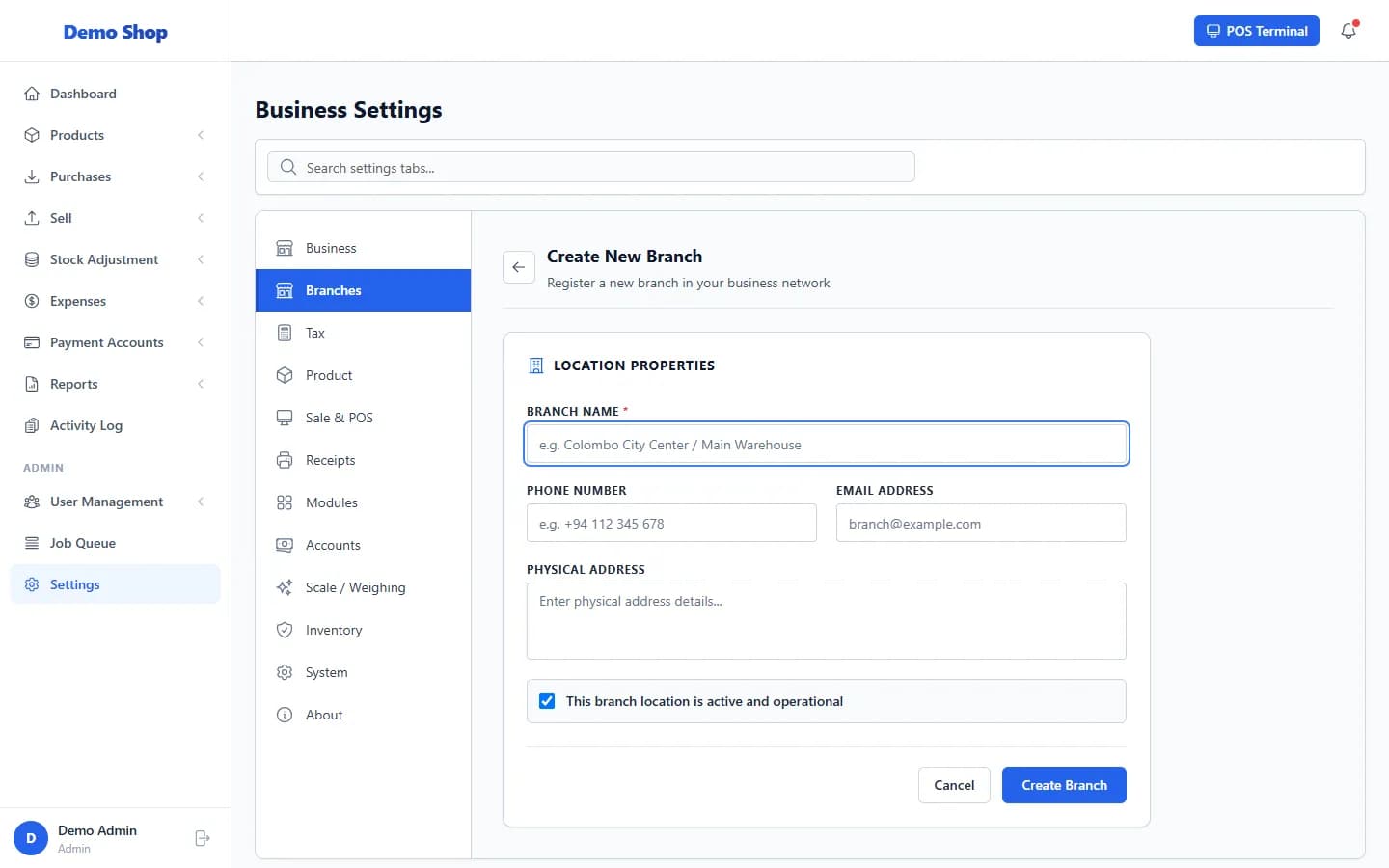
Open Settings → Branches, select Add Branch, enter the branch name and details, and select Create Branch. Every purchase, sale and stock change belongs to one branch.
A branch is a physical location such as a shop or warehouse. Stock is counted separately for each branch.
Steps
- Open Settings and select the Branches tab.
- Select Add Branch.
- Enter the Branch Name (for example “Main Store”).
- Add the Phone Number, Email Address and Physical Address if you wish.
- Leave This branch location is active and operational ticked.
- Select Create Branch.
What happens next
- The branch appears in branch lists across the system (purchases, stock adjustments, reports).
- You can limit a user to certain branches when you add them (see “Add a user”).
Last checked against ANOWEX ERP on . Screens and wording can change as the product is updated.