


Add a user
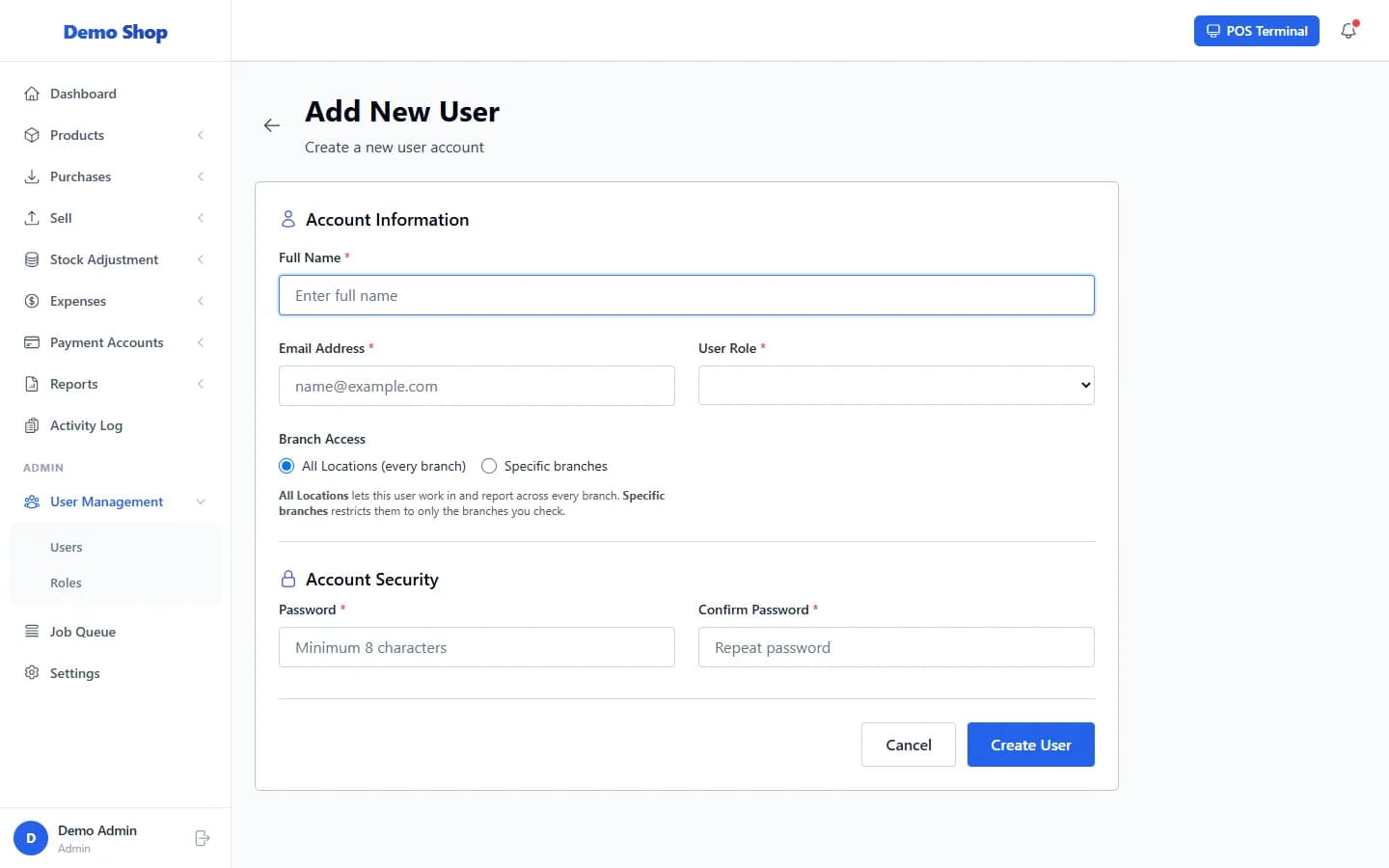
Open User Management → Users, select Add User, enter the details, choose a role and the branches the person may use, and select Create User.
Steps
- Open User Management in the left menu (under Admin) and select Users.
- Select Add User.
- Enter the Full Name and Email Address. The email address is what the person signs in with.
- Choose the User Role.
- Under Branch Access choose Specific branches and tick the branches this person works in. (Use All Locations (every branch) only for owners and administrators.)
- Enter a Password and Confirm Password. Use at least 8 characters.
- Select Create User.
What happens next
- The person can sign in straight away with that email and password.
- Their menu shows only what their role allows.
Common problems
| What you see | What to do |
|---|---|
| “The email has already been taken” | An account with that email exists. Edit it instead, or use a different email. |
| “The password field must be at least 8 characters” | Choose a longer password. |
Last checked against ANOWEX ERP on . Screens and wording can change as the product is updated.