


Open and close a cash drawer shift
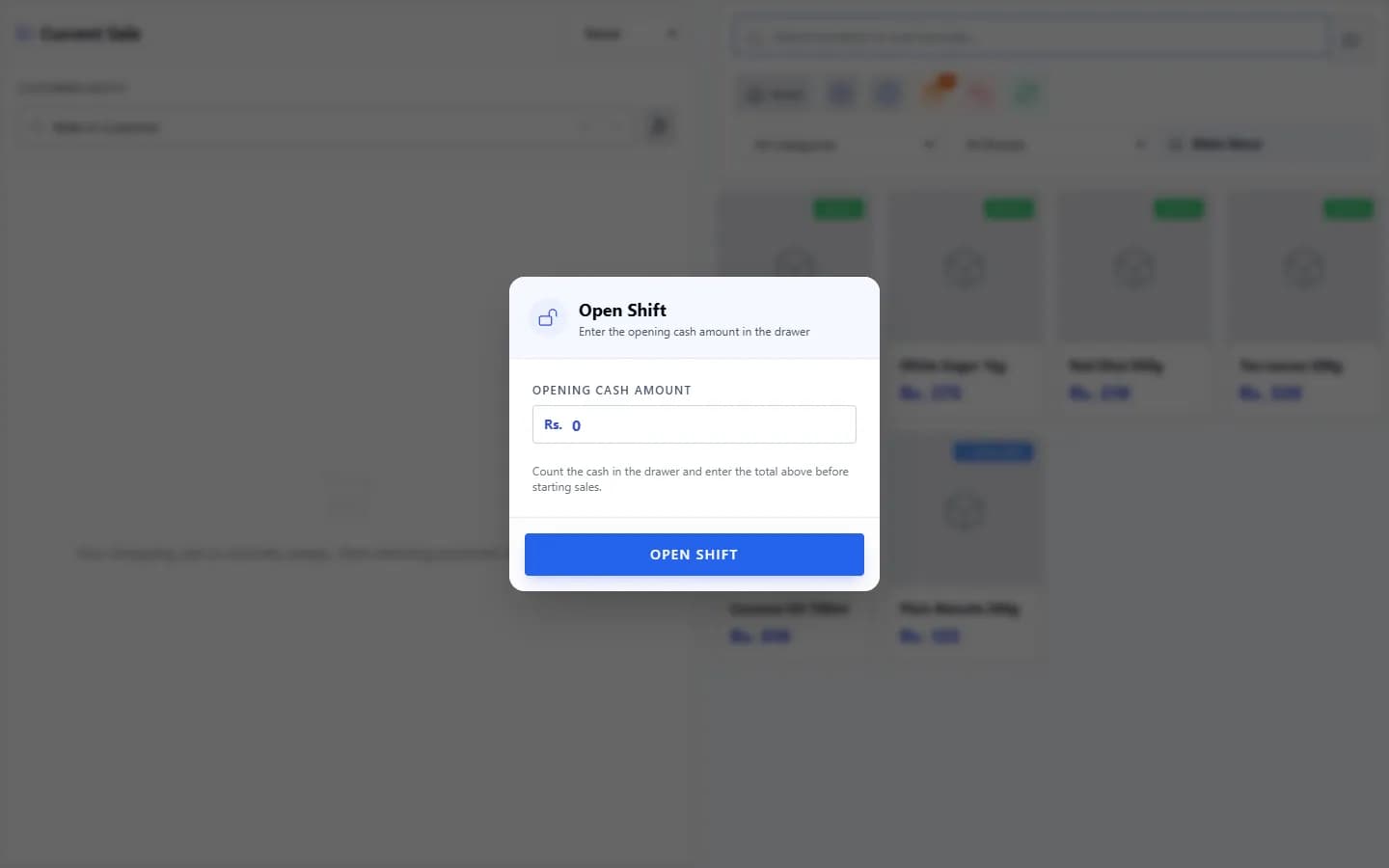
With shift management on, the POS asks for your Opening Cash Amount before you can sell. When you finish, use Close Shift, count the drawer and compare it with the Expected Cash.
Steps
- Open the POS. The Open Shift window appears.
- Count the cash in the drawer, enter it as the Opening Cash Amount, and select OPEN SHIFT. A message “Shift opened successfully.” appears.
- Sell as usual during your shift.
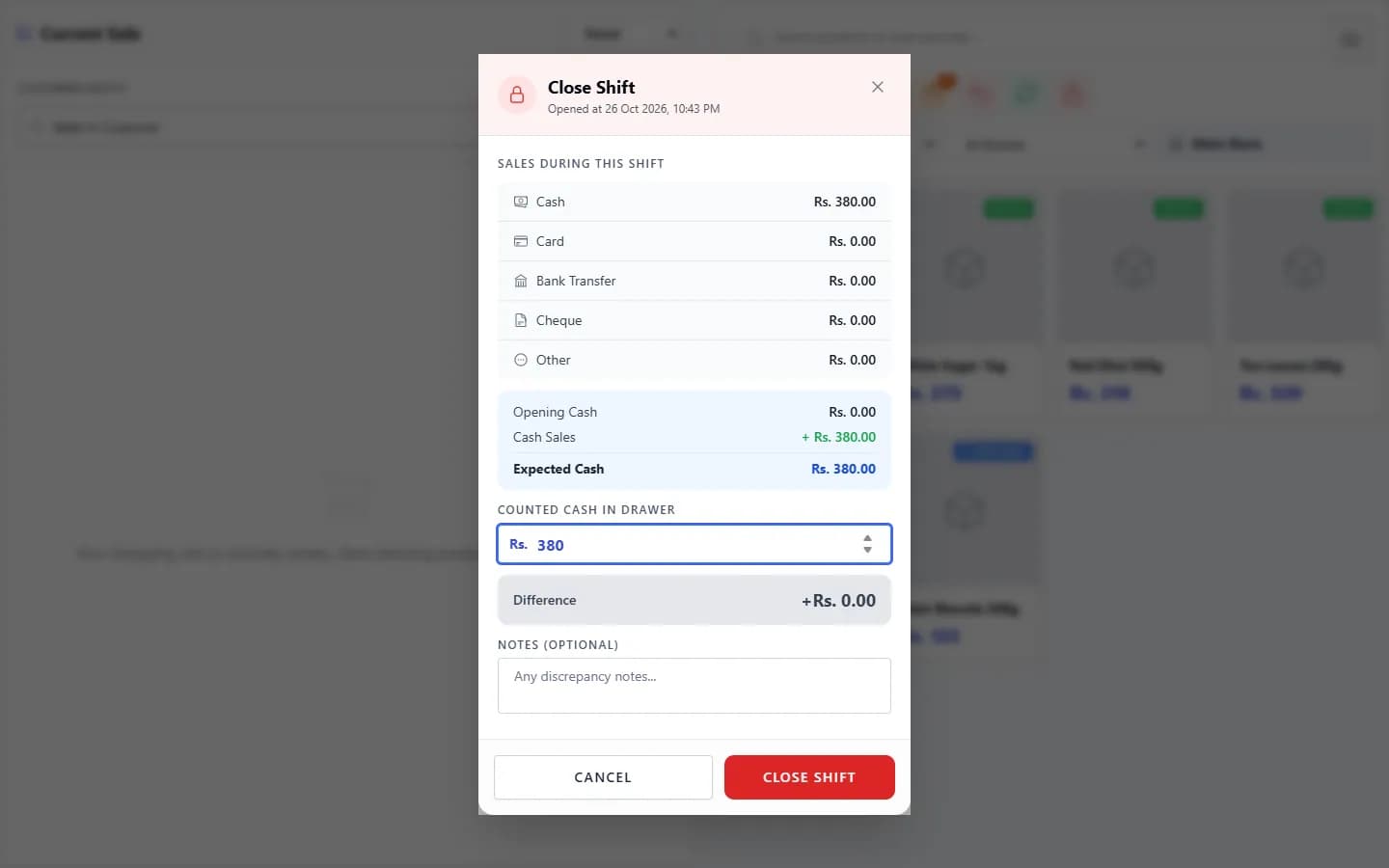
- At the end of the shift, select the Close Shift lock icon at the top of the POS.
- The Close Shift window shows Sales During This Shift, your Opening Cash, Cash Sales and the Expected Cash.
- Count the cash in the drawer and enter it as Counted Cash in Drawer. The Difference is shown.
- Add Notes (Optional) if the difference needs explaining, then close the shift. A message “Shift closed successfully.” appears.
What happens next
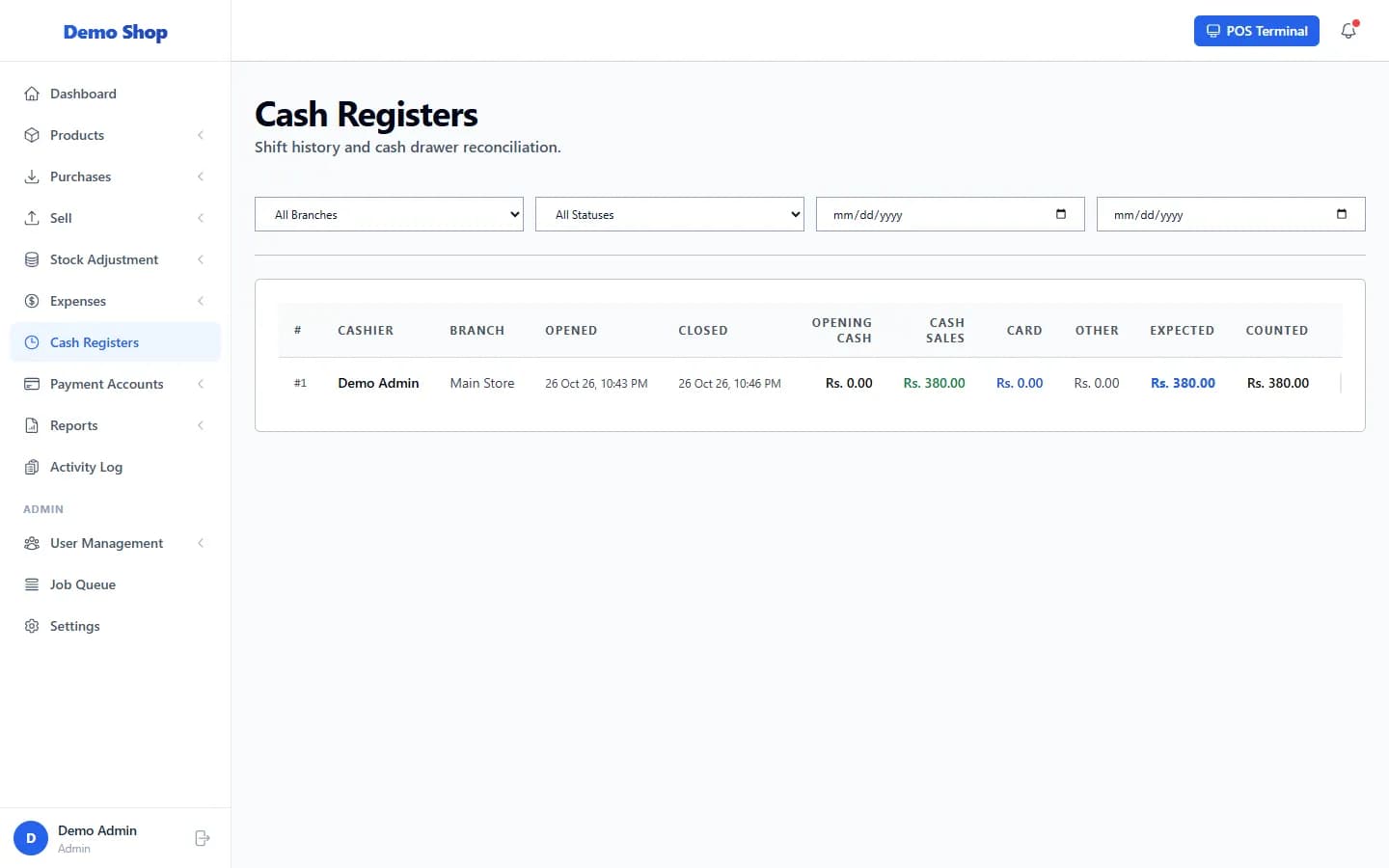
- The shift is stored with its totals under Cash Registers, with the cashier, branch, times, opening cash, cash sales, card, expected, counted and difference.
- A printable shift report is available from that list.
Common problems
| What you see | What to do |
|---|---|
| “You already have an open shift” | Close the shift you have open before opening another. |
| I cannot find Cash Registers in the menu | The menu item shows only when shift management is on and your role can view cash registers. |
Last checked against ANOWEX ERP on . Screens and wording can change as the product is updated.