


Make your first sale at the POS
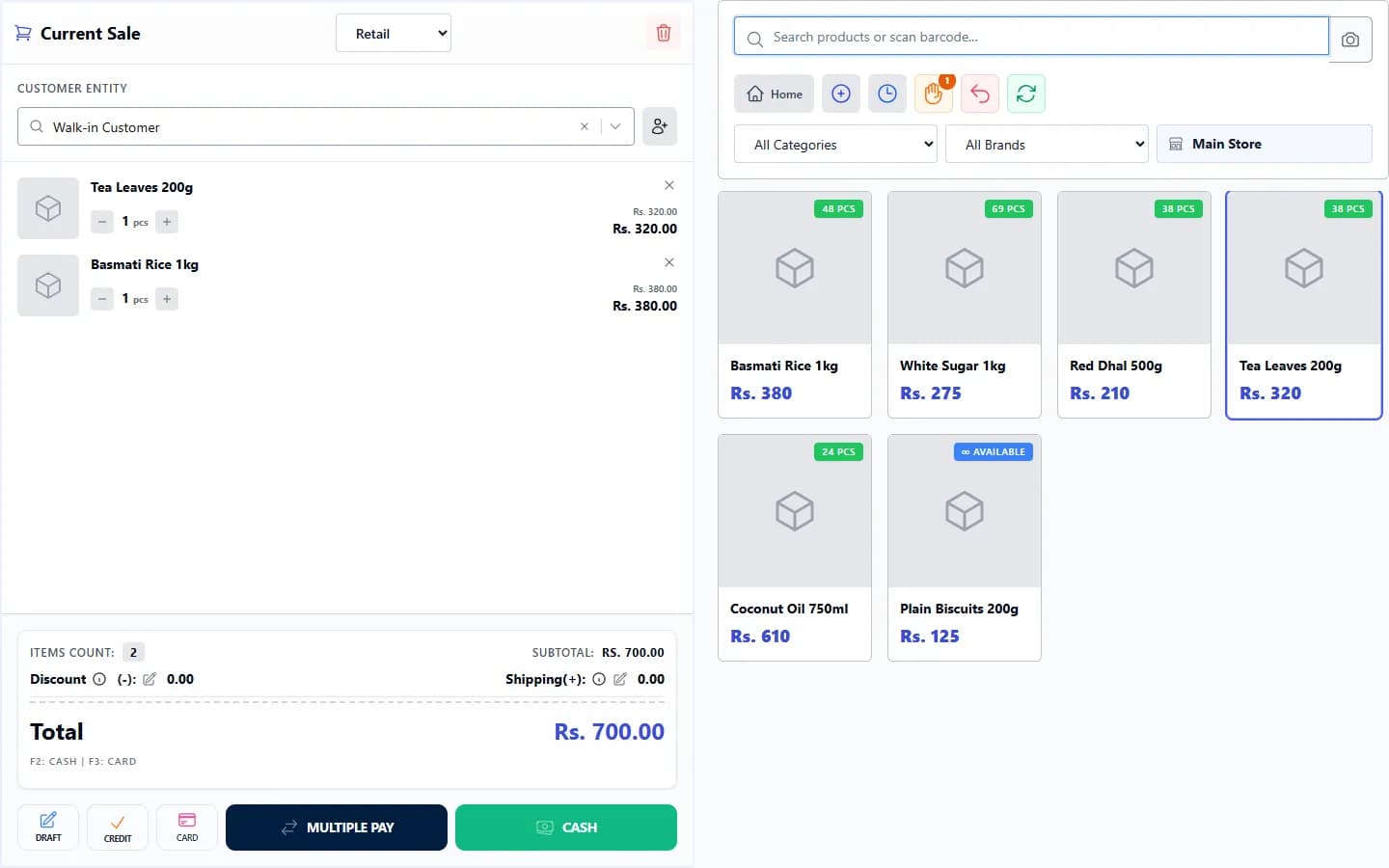
Open POS Terminal, add items by scanning or searching, check the total and press CASH (or CARD). The sale is saved, stock goes down and the cart clears ready for the next customer.
Steps
- Select POS Terminal at the top right of any page (or Sell → POS in the menu).
- If your shop uses cash drawer shifts, the Open Shift window appears. Enter the Opening Cash Amount (the cash in the drawer) and select OPEN SHIFT.
- Add items: scan a barcode, type in the search box and press Enter, or select the product tile.
- Change a quantity with the + and − buttons beside the item. Remove an item with the ×.
- Leave the customer as Walk-in Customer, or choose a customer (see “Take card, credit or split payments”).
- Check the Total.
- Press CASH (shortcut F2) or CARD (shortcut F3).
- If the cash or card payment window appears, enter the Amount Received and confirm.
- A message “Sale completed successfully!” appears. The cart clears and you can start the next sale.
Field guide
| On the POS screen | What it does |
|---|---|
| Search box and camera button | Find a product by name or barcode, or scan with the device camera. |
| Retail selector | Chooses the price list for the sale (for example Retail or Wholesale). |
| Customer | The buyer. Walk-in Customer is for anonymous cash sales. |
| Discount and Shipping(+) | Add an order discount or an extra charge (see “Discounts, extra charges and tax at the POS”). |
| DRAFT | Holds the sale to finish later (see “Hold a sale and resume it”). |
| CREDIT, CARD, MULTIPLE PAY, CASH | Complete the sale with that payment. |
What happens next
- Stock of every item sold goes down at the branch you are selling from.
- The payment is recorded against your cash or card account.
- The sale appears in Sell → Sales and in the reports.
Common problems
| What you see | What to do |
|---|---|
| “Insufficient stock” | Check the stock of the item at this branch. Receive stock with a purchase order, or correct it with a stock adjustment. |
| I cannot open the POS | Your role may not include POS access, or the POS module may be off in Settings → Modules. |
| The Open Shift window will not go away | Enter the opening cash and select OPEN SHIFT. Shifts are required when shift management is on. |
Last checked against ANOWEX ERP on . Screens and wording can change as the product is updated.