


Pay a supplier
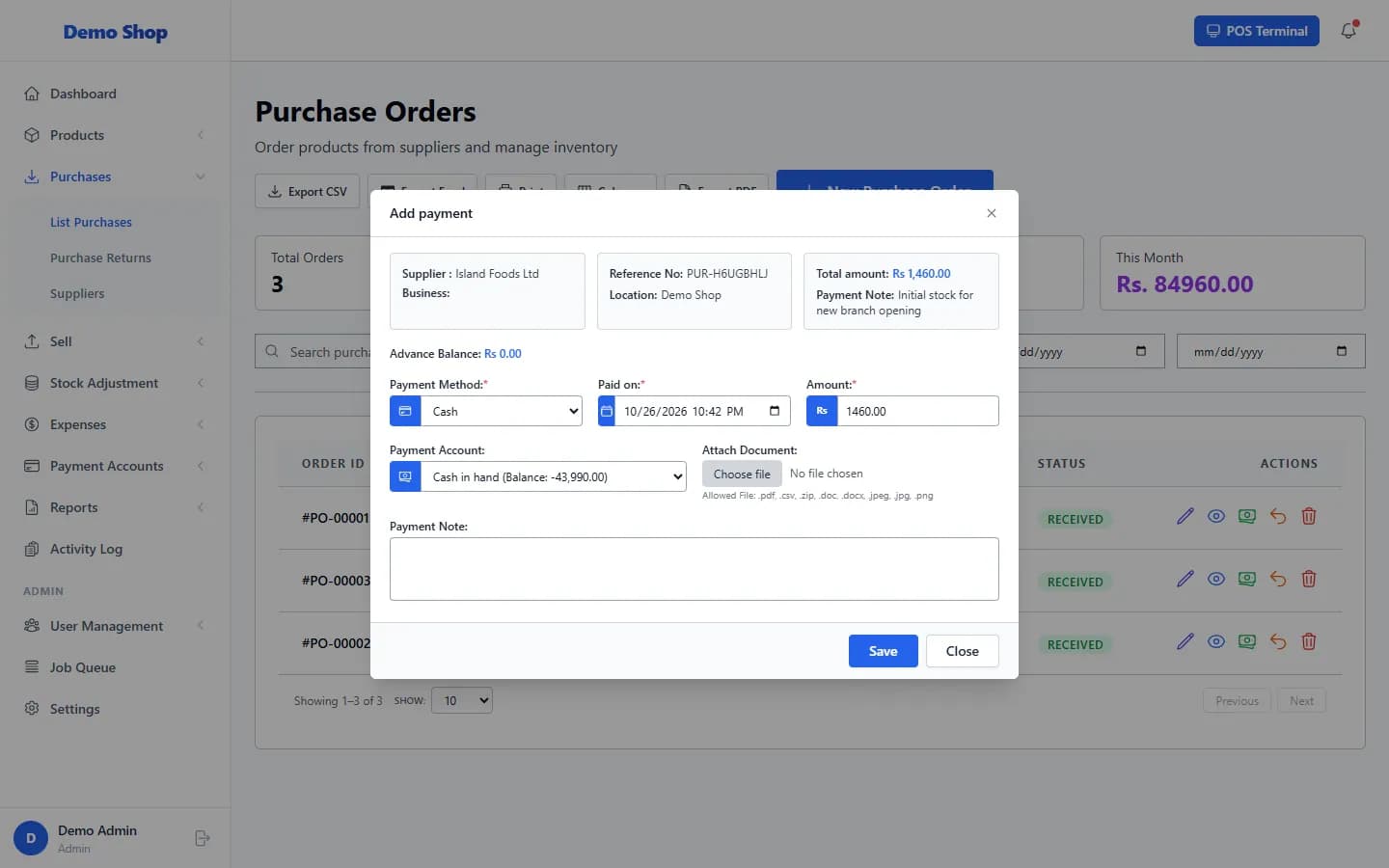
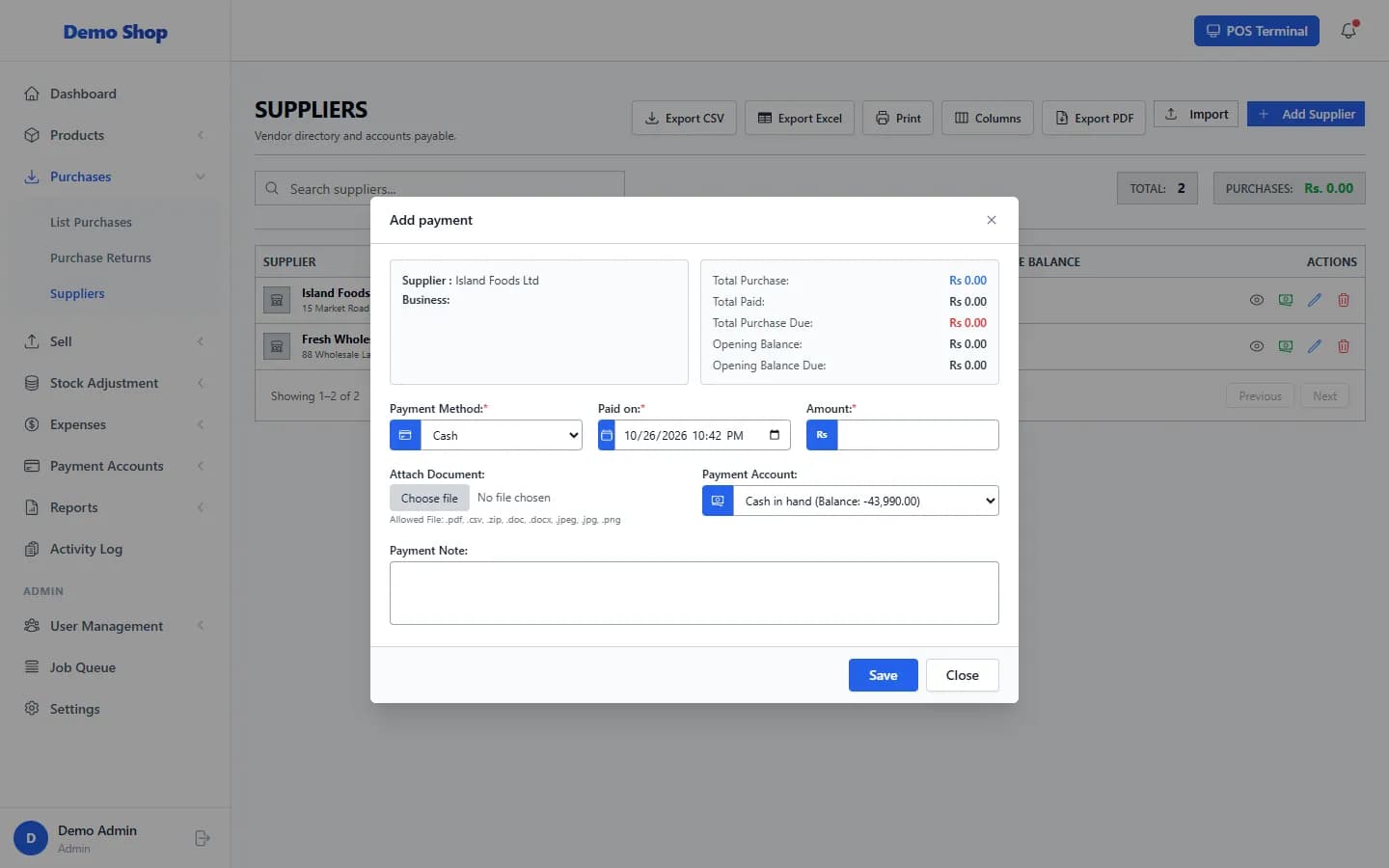
Record a payment from Purchases → List Purchases (row action Add Payment) or from Purchases → Suppliers (row action Record Payment). Choose the amount, method and date.
Use this when you bought on credit (Credit (Pay Later)) and now pay the supplier, or when you pay part of a bill.
Steps
- To pay against one purchase: open Purchases → List Purchases, find the purchase and choose Add Payment in its row.
- Choose the Payment Method (Cash, Card or Bank) and the Paid on date.
- Enter the Amount.
- Choose the Payment Account the money comes from, and attach a document such as a receipt if you wish.
- Add a Payment Note if needed and select Save.
- To pay a supplier in general: open Purchases → Suppliers, choose Record Payment in the supplier’s row, then enter the Amount, Method (Cash, Card or Bank Transfer), Payment Date and Notes.
What happens next
- The payment reduces what you owe that supplier.
- Money goes out of the payment account that matches the method.
- The payment appears on the supplier’s statement (View Statement).
Last checked against ANOWEX ERP on . Screens and wording can change as the product is updated.