


Add and manage suppliers
Open Purchases → Suppliers, select Add Supplier, enter the supplier’s details and select Create Supplier. Each supplier has a statement showing what you bought and paid.
Steps
- Open Purchases in the left menu and select Suppliers.
- Select Add Supplier.
- Enter the Supplier Name. Add the Company Name, Phone Number, Email Address and Street Address if you have them.
- If you already owe this supplier money from before you started using the system, enter it as the Opening Balance.
- If you have paid the supplier in advance, enter that as the Advance Balance.
- Add any Internal Notes, then select Create Supplier.
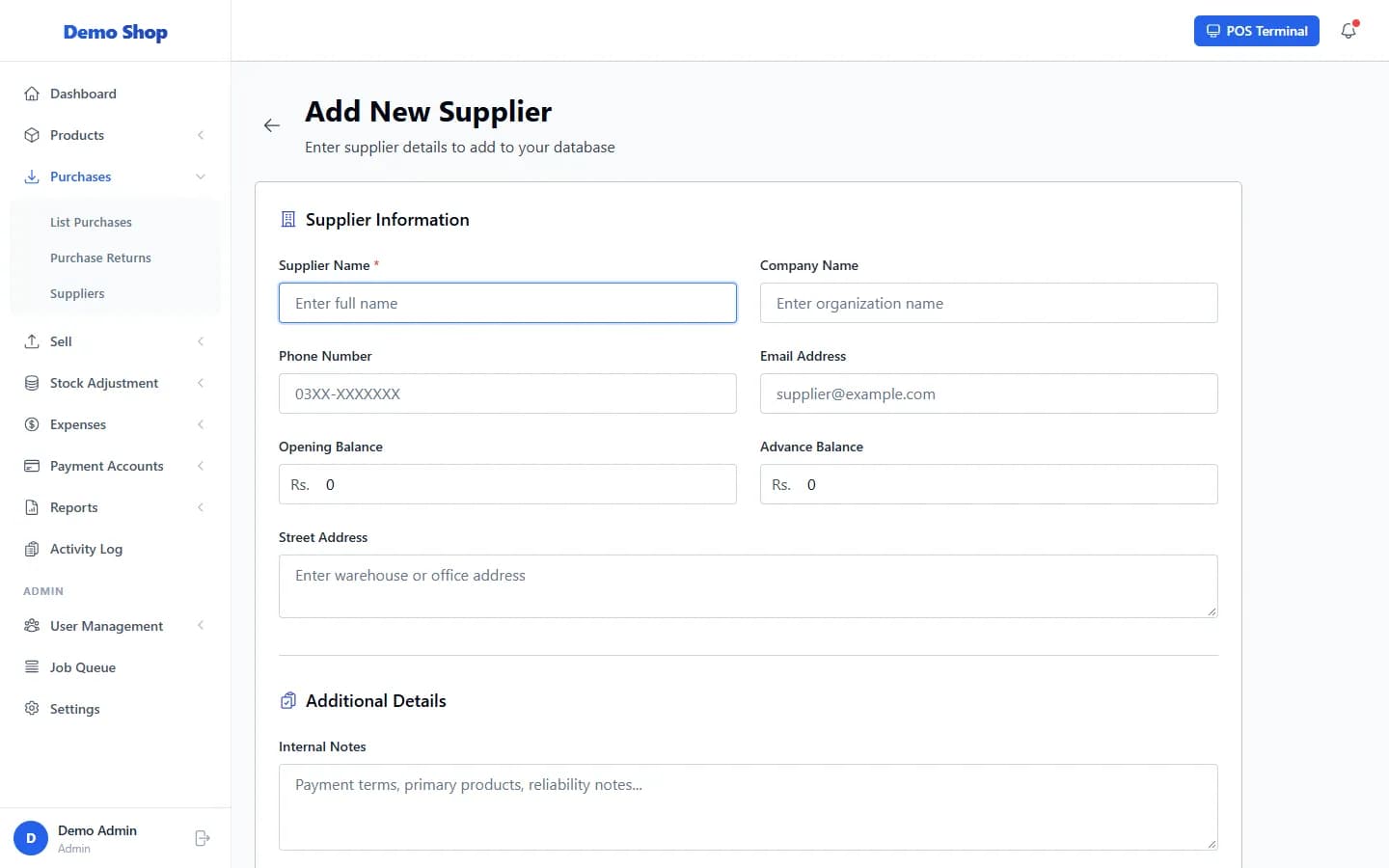
Field guide
| Field | What to enter | Required |
|---|---|---|
| Supplier Name | The name you will search for. | Yes |
| Company Name | The registered or trading name. | No |
| Opening Balance | What you owed this supplier when you started. | No |
| Advance Balance | Money you have already paid ahead. | No |
| Internal Notes | Notes for your team. Not shown to the supplier. | No |
What happens next
- The supplier is available when you create purchase orders.
- On the list, each row has View Statement, Record Payment, Edit and Delete.
- You can add many suppliers at once with the Import button.
Last checked against ANOWEX ERP on . Screens and wording can change as the product is updated.