


Set your business details, currency and time zone
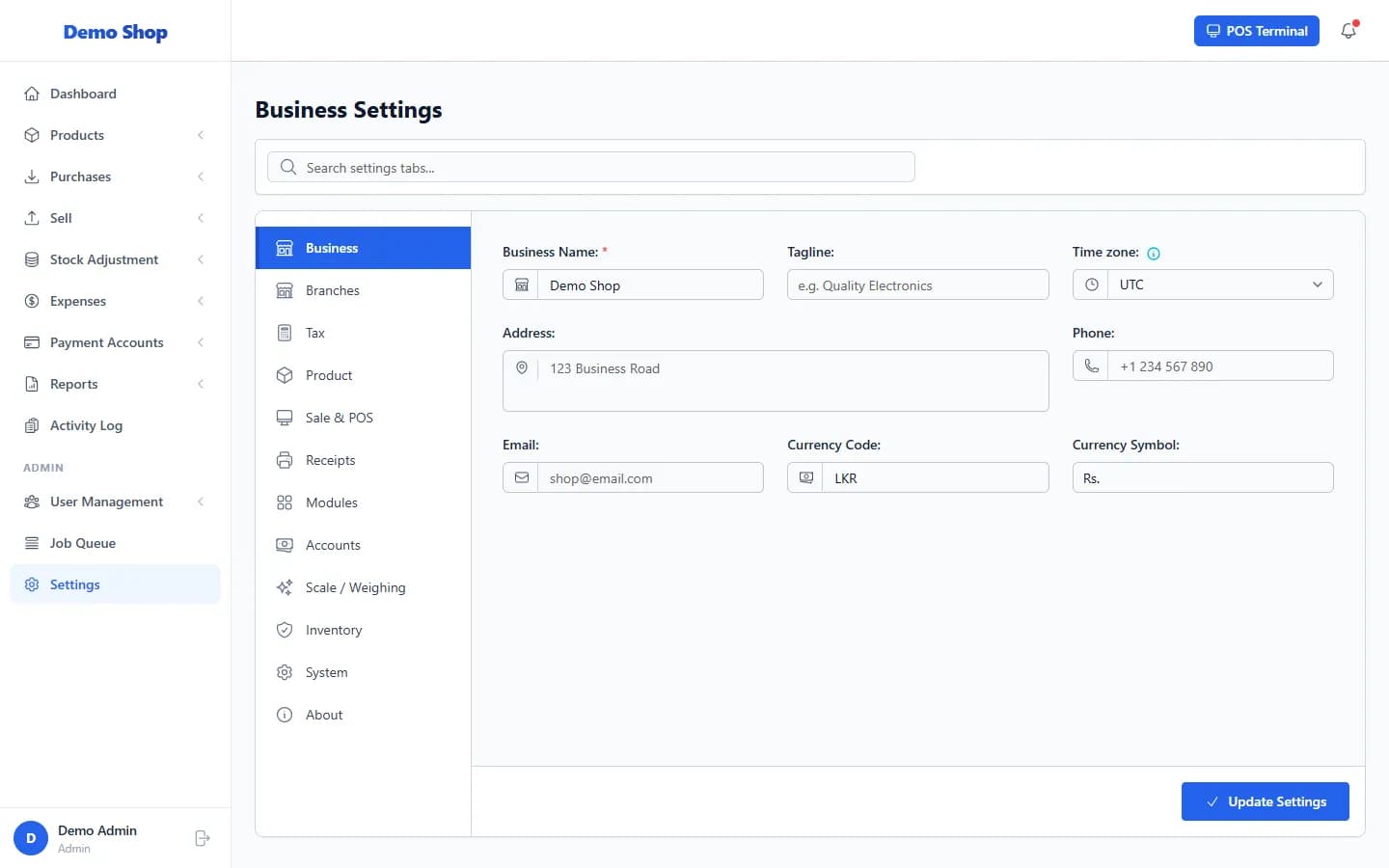
Open Settings → Business, enter your business details and currency, and select Update Settings. The business name appears at the top of the menu and on receipts.
Steps
- Open Settings (under Admin) and select the Business tab.
- Enter the Business Name (required) and an optional Tagline.
- Choose the Time zone. Sales dates and times follow it.
- Enter your Address, Phone and Email.
- Enter the Currency Code (for example LKR) and the Currency Symbol (for example Rs.).
- Select Update Settings.
What happens next
- The business name replaces the default name at the top of the left menu.
- Receipts use these details (you choose which appear in Settings → Receipts).
Last checked against ANOWEX ERP on . Screens and wording can change as the product is updated.