


Connect cash, card and bank payments to accounts
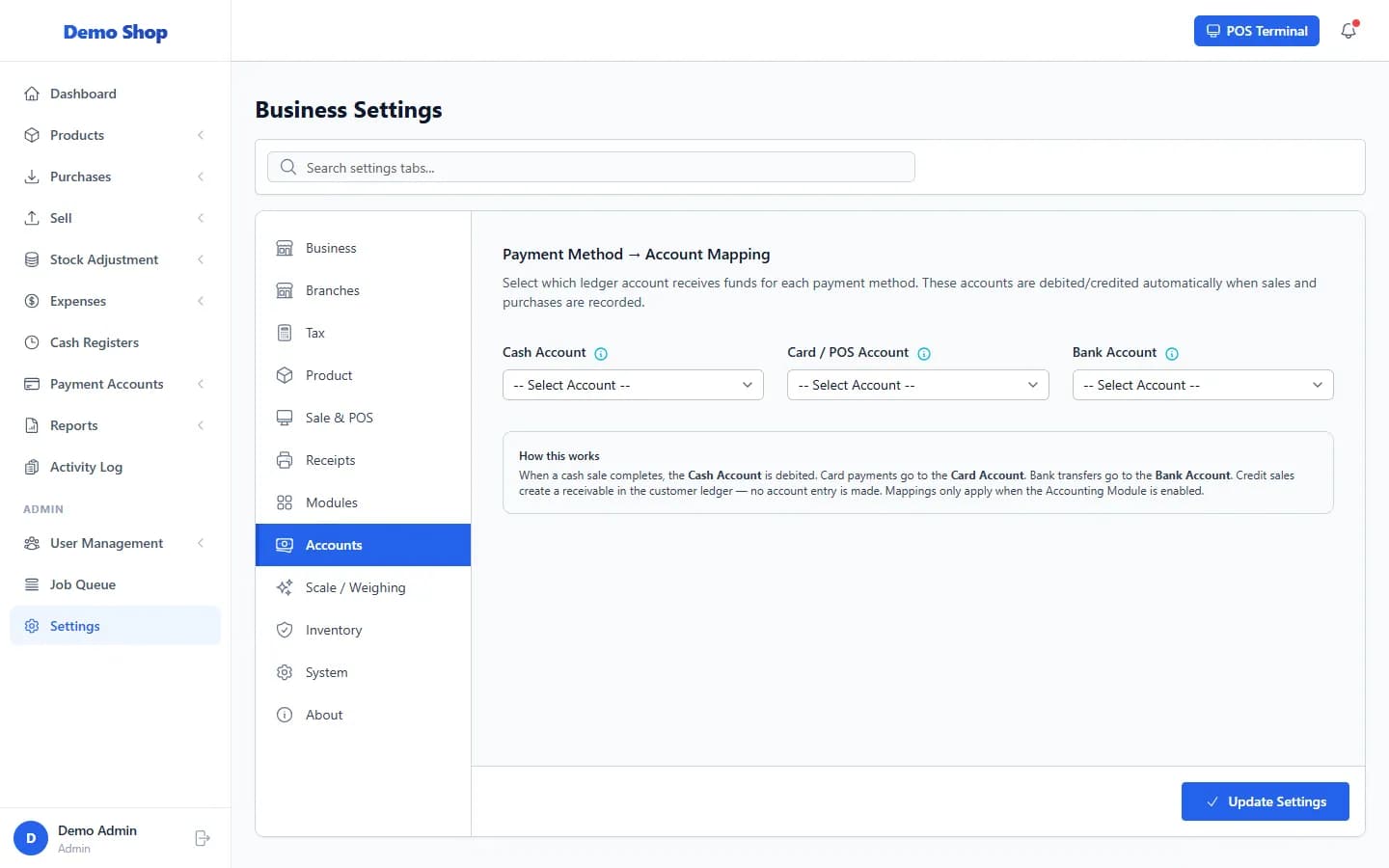
Open Settings → Accounts and choose an account for Cash Account, Card / POS Account and Bank Account. Payments from sales and to suppliers are then recorded against them.
Steps
- Check your accounts under Payment Accounts → List Accounts. Create any that are missing with Add.
- Open Settings → Accounts. The section is titled Payment Method → Account Mapping.
- For Cash Account, choose the account that receives cash payments from sales and pays for cash purchases.
- For Card / POS Account, choose the account for card payments.
- For Bank Account, choose the account for bank transfer payments and deposits.
- Select Update Settings.
What happens next
- A cash sale is added to the cash account, a card sale to the card account, and so on.
- Cheque and bank transfer payments go to the bank account.
- Credit sales, advance-balance payments and store-credit payments do not go to an account.
Last checked against ANOWEX ERP on . Screens and wording can change as the product is updated.