


Roles and permissions explained
A role is a named set of permissions. Use the built-in roles (Super Admin, Admin, Manager, Cashier) or create your own under User Management → Roles.
Create a role
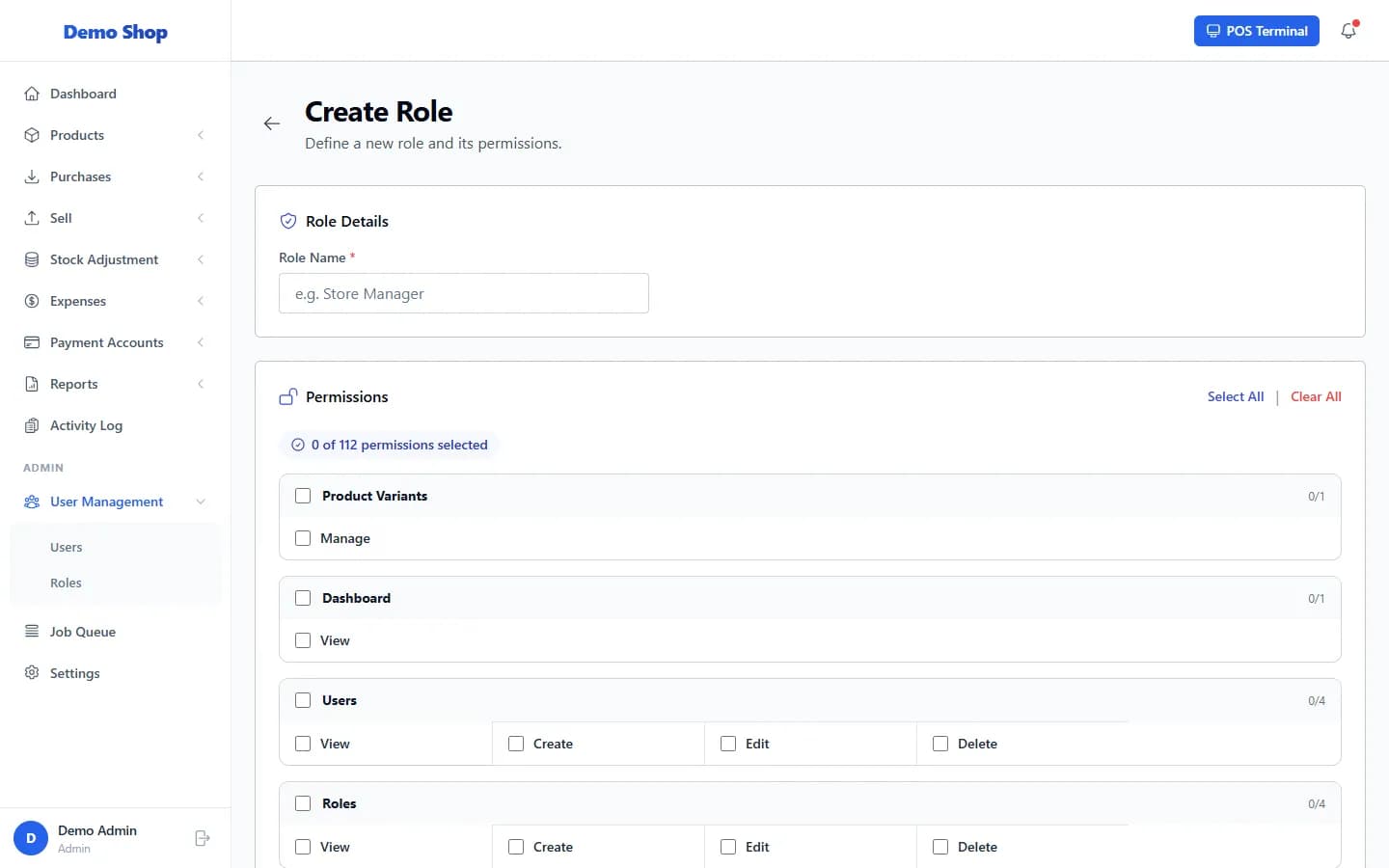
- Open User Management → Roles and select Create Role.
- Enter the Role Name.
- Tick the permissions the role should have. They are grouped by area (Products, Purchases, Customers and so on). Select All and Clear All help.
- Select Create Role.
What the permission words mean
| Permission group | What it lets someone do |
|---|---|
| View | See lists and open records in that area. |
| Create | Add new records. |
| Edit | Change existing records. |
| Delete | Delete records (this also covers restoring and bulk deletes in Products). |
| Pos → Access | Use the POS. |
| Sales → Returns | Process returns and see store credits. |
| Sales → Edit-price / Edit-discount | Change an item’s price or give a discount at the POS. |
| Products → View-cost-price | See purchase price and profit columns in the product list. |
| Customers → Payments / Suppliers → Payments | Record, change or delete payments from customers or to suppliers. |
| Reports | One permission for each report. |
| Settings → View / Edit | Open the Settings page / save changes. |
Last checked against ANOWEX ERP on . Screens and wording can change as the product is updated.