


Take card, credit or split payments
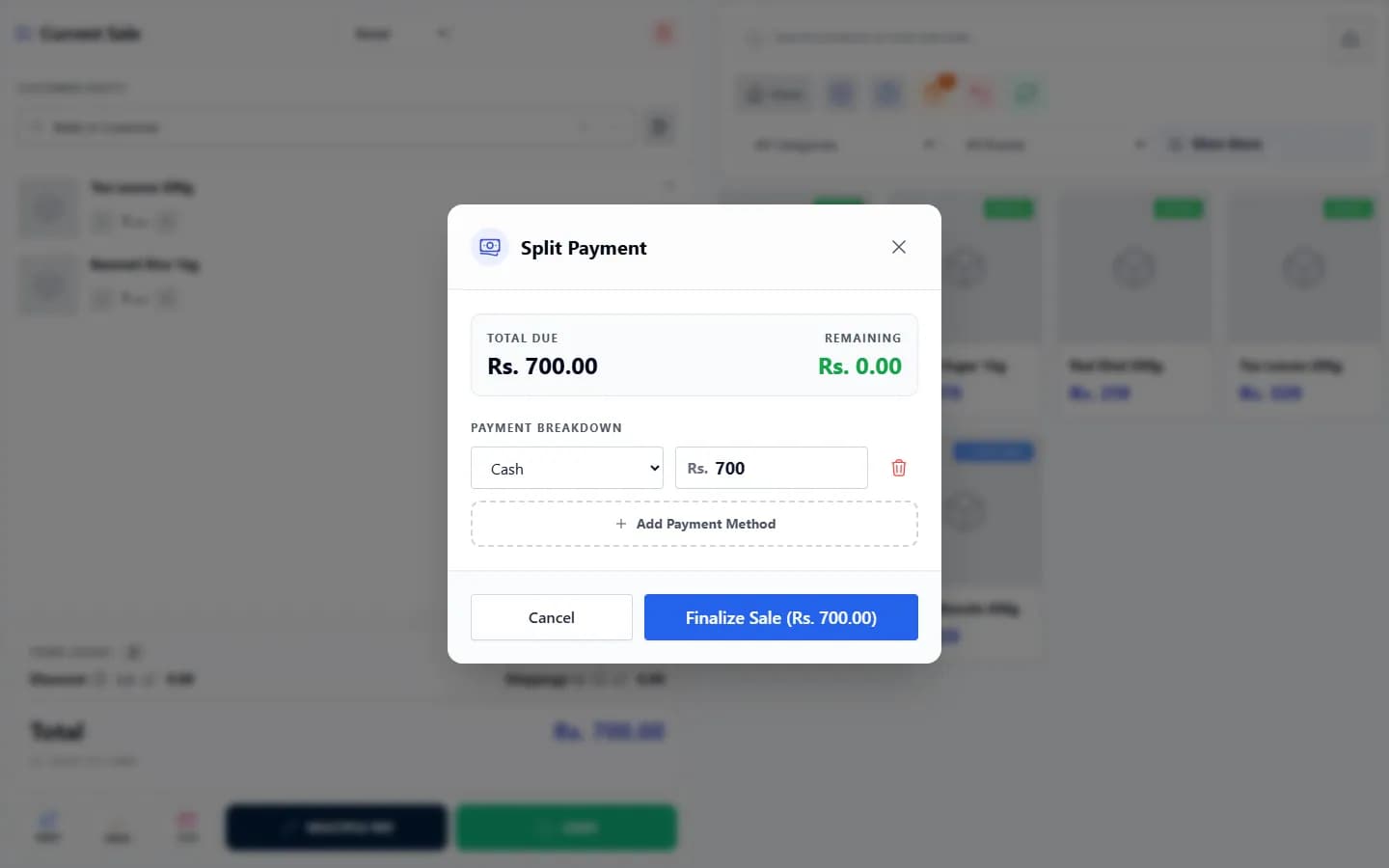
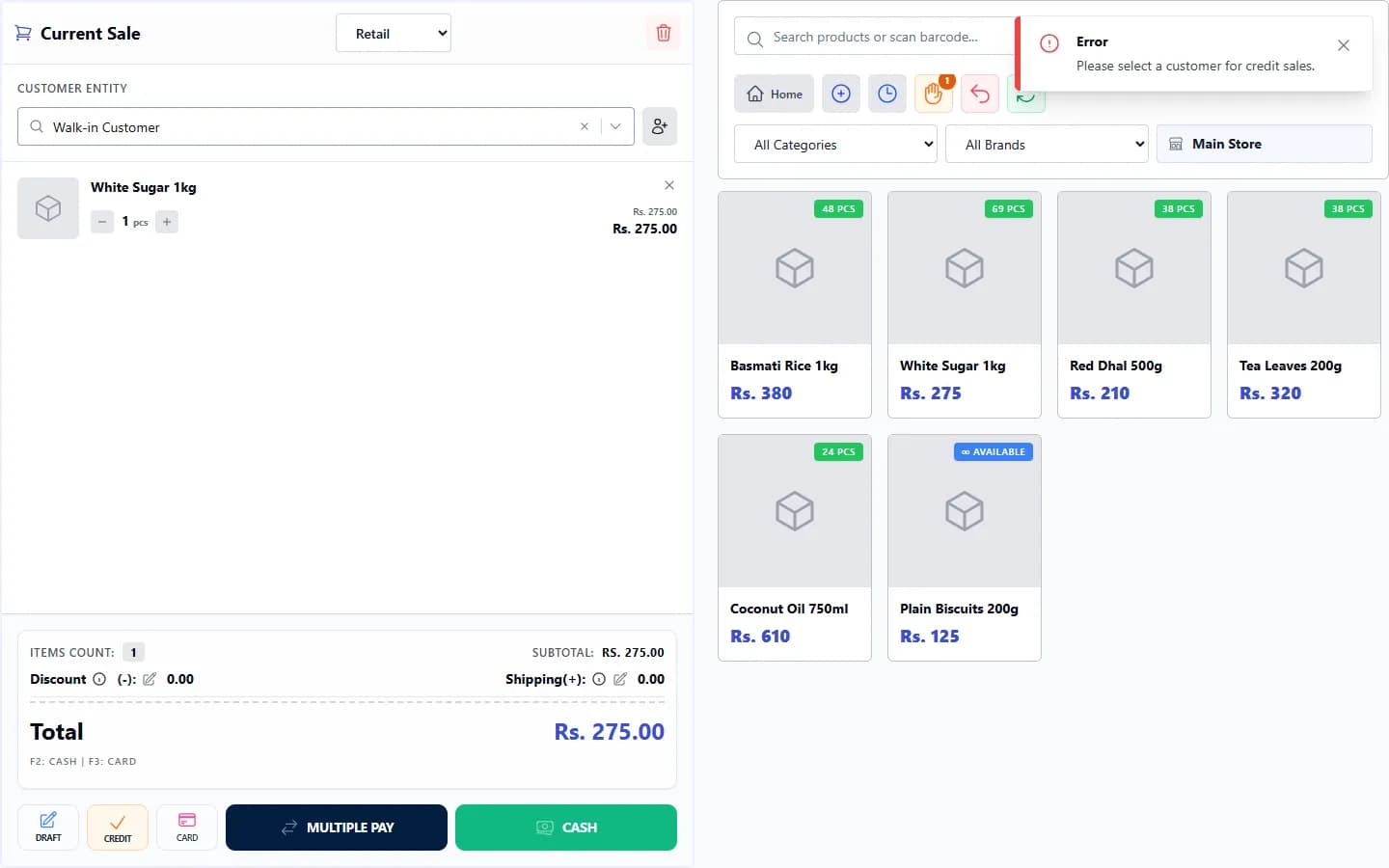
Use CASH, CARD or CREDIT for a single payment, or MULTIPLE PAY to split the total between payment methods. A credit sale needs a customer.
Steps
- Add the items and check the Total.
- For a cash or card sale, press CASH (F2) or CARD (F3).
- For a credit sale (customer pays later), first choose the customer in the Customer box, then press CREDIT (F4).
- For a mixed payment, press MULTIPLE PAY. The Split Payment window shows the Total Due, the Remaining amount and a Payment Breakdown.
- In the breakdown, set the first payment’s method and amount. Select Add Payment Method to add another line until Remaining is zero.
- Select Finalize Sale.
What happens next
- Cash and card payments go to your cash or card account.
- A credit amount is added to what that customer owes. It appears in their statement and in the Customer Dues report.
- If your shop uses the cash window (Settings → Sale & POS → Enable Cash/Card Tender Modal) and you enter more than the total, it shows the change. You can return it to the customer or save it to the customer’s advance balance.
Common problems
| What you see | What to do |
|---|---|
| “Please select a customer for credit sales.” | Choose a real customer in the Customer box, then press CREDIT again. |
| “Credit limit exceeded” | Ask the customer to settle some of what they owe first, or an administrator can raise their credit limit. |
Last checked against ANOWEX ERP on . Screens and wording can change as the product is updated.